嗯,用户让我帮忙总结一下这篇文章的内容,控制在100字以内,而且不需要用“文章内容总结”之类的开头。直接写描述即可。首先,我需要通读整篇文章,抓住主要信息。 文章主要讲的是作者购买了一个Aula F108 Pro机械键盘,并尝试用Ghidra MCP和LLM(如Claude Opus 4.6和GPT-5.4)来逆向工程键盘的软件。过程中遇到了很多问题,比如LCD屏幕的问题、数据传输协议的错误、还有固件的限制等。最终虽然部分解决了问题,但键盘还是有些功能无法正常使用。 接下来,我需要把这些信息浓缩到100字以内。重点包括:键盘型号、逆向工程工具、遇到的问题、解决过程中的挑战以及最终的结果。 可能会漏掉一些细节,但要确保核心内容都涵盖进去。比如提到LCD屏幕的问题和数据传输错误是关键点,还有固件限制导致的无法完全修复。 最后,检查一下字数是否符合要求,确保语言简洁明了。 </think> 作者通过逆向工程分析了Aula F108 Pro机械键盘的软件,并使用Ghidra MCP和LLM(如Claude Opus 4.6和GPT-5.4)工具探索其功能。过程中遇到LCD屏幕显示问题、USB传输协议错误以及固件限制等挑战。尽管部分问题得到解决,但键盘仍存在功能异常和无法完全修复的问题。 2026-4-13 06:7:0 Author: parsiya.net(查看原文) 阅读量:40 收藏
I used GPT-5.4 and Claude Opus 4.6 to reverse engineer the Aula F108 Pro keyboard's software using Ghidra MCP. This is how I did it, what setbacks I had, and how (A)I borked the keyboard's screen despite constant supervision and review.
I also introduce the novel wording of (A)I, meaning both I and AI did
something, because everyone is making things up, why not me? I assume I need to
give it a name, a logo, and a website to become an AIfluencer?
- Code: https://github.com/parsiya/f108-pro
- ai-docs: https://github.com/parsiya/f108-pro/tree/main/ai-docs
[greetz]
- Adam from MORSE for review and feedback1.
- LaurieWired for GhidraMCP.
- Song: Mina Deris - Iranam.
- Book: Alastair Reynolds - Anthology - Beyond The Aquila Rift.
- Diamond Dogs is phenomenal. I didn't like the ending, but holy shit, the setting!
[anti-greetz]
- Web pages that hijack any and all shortcut keys like
ctrl+f/n - Infosec LinkedIn:
- "If you want a picture of the future, imagine vendor
security researchmarketing blogs rehashed by LLMs — forever."
- "If you want a picture of the future, imagine vendor
 In other news, Mythos was released recently!
I bought a new mechanical keyboard, the Aula F108 Pro. I got it for $40 (retails for $90) via Amazon renewed mainly because it's pink! The refurbished versions of other colors were $60. Here it is beside my Chilkey ND104. Yes, I like cyan backlights.
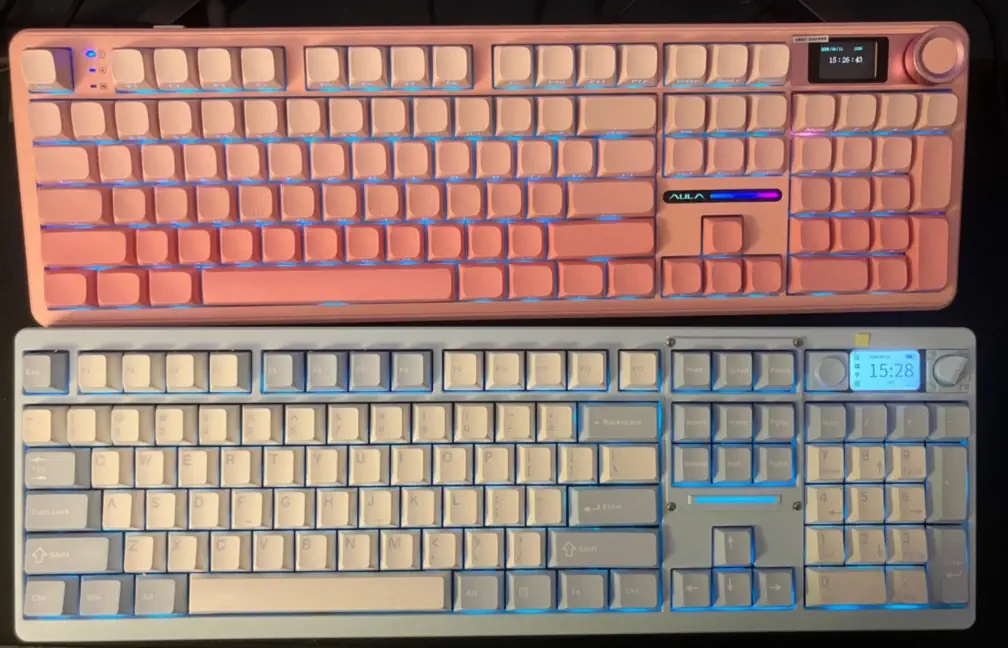 Aula F108 Pro and Chilkey ND104
I quite like the sound and it's hot swap (can change the switches without soldering) so I can put some silent switches for the office and annoy my coworkers by dragging a pink keyboard around. I love the color.
It's nowhere close to my ND104, but for $40 vs. $200, it's 60-70% of the way there. My only problem (apart from the software and what you see below) is the knob. It's too sensitive and kind of useless for configuring the keyboard with the screen. Pressing the knob will rotate it most of the time.
Keyboard Software
The software is, well, not that trustworthy. Not that I think they want to hack me, but in general, peripheral software is not great. I ran the application on an old desktop and configured my keyboard, but that is not practical. So I decided to see if I could use LLMs to reverse engineer it and make my own tool.
You can find different versions of their software.
- This page lets you download version
1.0.0.1. - This one has version
1.0.0.3and has a new firmware release:
The software is actually perfect for this experiment because all the UI and functionality is in a small 3 MB executable. Pretty neat. You know it's a Chinese company because an American company would have shipped a 300 MB Electron wrapper :).
You can also find the software on the Epomaker website because it's built by them: https://epomaker.com/products/epomaker-x-aula-f108-pro
- Debian 12 in WSL2: That's where I do most of my dev work.
- GitHub Copilot Chat in VS Code: In my free token (at work and home) era!
- Ghidra MCP by LaurieWired
- Models: Claude Opus 4.6 and GPT-5.4 (on High reasoning).
GhidraMCP Setup
I followed the instructions in the readme to install the extension and got the Python bridge.
I created .vscode/mcp.json in my workspace as follows:
{
  "servers": {
    "ghidra": {
      "type": "stdio",
      "command": "~/aula-reverse/f108-pro/GhidraMCP-release-1-4/.venv/bin/python",
      "args": [
        "~/aula-reverse/f108-pro/GhidraMCP-release-1-4/bridge_mcp_ghidra.py",
        "--ghidra-server",
        "http://127.0.0.1:8080/"
      ]
    }
  },
  "inputs": []
}
Then I opened DeviceDriver.exe in Ghidra and started the analysis. This is the
main binary and the analysis should be quick. I got an error in the middle of
the analysis but that's not a blocker. Although as we will see later, it's good
to copy the entire installation directory to the workspace for the AI to access.
Attaching the Keyboard to WSL2
I installed and used usbipd-win to connect the keyboard to WSL2. I used it in Wired mode but apparently it's also possible to use the utility to configure the keyboard using the 2.4 GHz dongle. See the instructions at https://github.com/parsiya/f108-pro?tab=readme-ov-file#wsl2.
This makes the keyboard unresponsive in Windows (even inside WSL2) which is why I am using two keyboards in the picture above.
Model Difference
I did not see a lot of difference between Claude Opus 4.6 and GPT-5.4 for these tasks. GPT-5.4 was set to high reasoning from the default medium and Claude Opus 4.6 was on default high. This might not be a great benchmark because this is simple reversing.
I am sure people have their own favorites, but for my use cases at work and home they are very close. At work I mostly use GPT-5.4 in our own subscription, and at home I use Claude Opus 4.6 via GitHub Copilot. GPT-5.4 yaps more, but I have instructions to cut the talking and summaries to a minimum.
LLM Usage and Hand Holding
I oversaw every step and read the (decompiled) code along with the LLM reasoning. Both models were very good at understanding decompiled code and using the GhidraMCP to follow references. Much better than me, but I've not been a reverse engineer for almost a decade.
The sooner you come to accept your condition as a defect, the sooner you will find yourselves in a position to transcend it.
I am not one of those "go find things for me and keep trying until things are
working." I understand the incentives of the model makers and the AGI-pilled to
pretend one-shotting is a virtue, but it's not for me. I created a huge prompt
with all the information I had and put it in the ai-docs directory for the
LLMs to use. What's ai-docs? It's a path for (A)I knowledge (A.K.A. where the
markdown files go). See
Manual Context is a Bug.

You can see the ai-docs at:
https://github.com/parsiya/f108-pro/tree/main/ai-docs.
The models documented their findings in markdown files at every step. When a task finished, I started with a fresh session to avoid context rot.
I had to yank the models and steer them back quite a few times. It was very easy for them to get lost in even such a small binary. I realized I can get much faster results if I mentioned the text or label from the original software for the functionality and let them list strings and xref from there.
I found it very useful to have a main index called ai-docs/ghidra-functions.md with a table of every function and a brief description. This is something I've successfully used in my toy static analysis tooling. Pass each function/method to LLM and ask it to generate a description and categorize it along with what it calls (now you have a callgraph). Functions are usually small enough to fit in the "good parts of the context window" and the index is refined and categorized by the LLM with new information.
All in all, LLMs found most functionalities and I reviewed the results. Then (A)I created a Go utility that actually works. I will not go through the details, see the protocol and the code linked above. Instead I want to focus on the challenges and most importantly how (A)I were fooled by the vendor software.
To quote Albert Zeigler from his new XBOW blog AI for Pentesting: Strengths, Weaknesses, and Where XBOW Fills the Gaps.
In addition, LLMs are trained to please, so their findings are not always reliable, and need to be validated.
I fear that I'm becoming too reliant on AI especially for source code review and eventually lose the plot. But reviewing the output at every step is slow and you risk "getting left behind." I don't have a solution yet, but I am sure there are plenty of suggestions from people that involve me paying them :).
Soapbox rant done, if you like bikeshedding you should stop here and head to LinkedIn comments. For the rest, here are the challenges:
The LCD
F108 Pro comes with an LCD, I think it is the only difference between the Pro and non-Pro F108. It's your typical keyboard screen LCD. It's janky, small and has limited uses. This one is 240x135. You can see the charge, time, and also use it to configure the keyboard. You can also upload an animated gif to it and this is where disaster struck.
You can read the entire investigation documented by AI in ai-docs/lcd-upload-investigation.md. As (A)I were experimenting, I kept asking the AI to document the process.
The Upload Protocol
The LCD doesn't understand GIF files. The software decodes the GIF into raw RGB565 pixel data (two bytes per pixel, 240x135 = 64,800 bytes per frame), prepends a 256-byte header with frame timing data, and sends the whole thing to the keyboard in 4096-byte pages.
The protocol uses two different USB interfaces: interface 3 for control commands (begin, header with page count, apply) and interface 2 for the actual pixel data.
I don't think I could have figured this all by myself, lol.
Validating the File
The keyboard crashed after the first try. All lights died and the LCD went black. Luckily unplugging and replugging the keyboard brought it back.
First I thought the image was not correct. The AI was using the Go tool to generate the image and immediately upload it. There was no validation. So I asked AI to split image generation and upload. But this means I need to trust the same library that generated the image to verify it. Long story short, the image and conversion were correct.
This reminds me of the joke about the famous Bundle of Sticks story. The sons keep breaking the sticks no matter how many the father bundles together and he finally says "thanks for ruining the lesson, assholes."
A Subtle Difference: Control vs. Interrupt Transfers
The Windows software doesn't use control transfers for the data pages. It uses
WriteFile and ReadFile, which the Windows HID driver translates into
interrupt endpoint transfers. These are a fundamentally different USB transfer
type. The control pipe (endpoint 0) is shared and generic. Interrupt endpoints
are dedicated channels with their own buffers in the firmware.
The keyboard's interface 2 has two interrupt endpoints: EP 3 OUT for sending data and EP 4 IN for receiving acknowledgments. Both have a 64-byte max packet size, so a single 4096-byte page gets fragmented into 64 USB packets automatically by the host controller. The firmware expects data to arrive this way. Sending 4096 bytes on the control pipe was the cause for the crash (at least the AI thinks so).
The fix was switching from dev.Control() to gousb's interrupt endpoint API.
Five lines of code:
outEP, _ := intf2.OutEndpoint(3)
inEP, _ := intf2.InEndpoint(4)
outEP.Write(pageData)  // 4096 bytes, fragmented automatically
inEP.Read(ackBuf)      // 64-byte ACK
Don't Trust the Tool Fool
For my next experiment, I noticed the software comes with an embedded gif in
[software-installation-path]/gif/AULA F108Pro 三模机械键盘/0.gif. This is a
GIF with 214 frames. I passed it to the tool to upload. All 3,386 pages
transferred successfully. The keyboard showed a progress bar, then the animation
started playing. It worked.
Then I turned the knob and the menus were gone, wut?! The menus were there but I just couldn't see them, instead I would see the last frames of the gif. If I pressed the knob, I was in a menu but I didn't know where.
I thought I could fix it by uploading another gif so I asked AI to create and upload a one frame gif. It didn't work. You can see the one frame red gif along with the corrupted menus in this video.
I thought I could trust the gif embedded with the app. But it looks like the app
actually only checks and sends the first 141 frames. There's a config value
gif_maxframes="141" in rgb-keyboard.xml. Furthermore, if you try to upload
the embedded gif with the original software it will warn that you can only
upload 141 frames.
Later I realized the same software is used for multiple keyboards so there are probably other keyboards that can show the entire gif. (A)I assumed the gif in the software is safe for our keyboard.
The keyboard's firmware has no bounds checking. It blindly writes whatever you send via the upload protocol to SPI flash. It looks like the 141-frame limit corresponds to the physical space allocated for the image slot in the flash layout. Everything past frame 141 overflowed into the menu graphics and overwrote the keyboard screen's menu.
What Didn't Fix This Mess
I tried everything I could think of:
- Factory reset (
fn+esc): Resets lighting colors and modes, not the screen. - Firmware update (Sonix ISP flasher v1.07) included with v1.0.0.3 of the software: Only reflashes the keyboard. The menu graphics live on a separate chip. Similar to my ND104 which uses different firmware images for the keyboard and the screen.
- Uploading a small image: The image slot updated correctly (solid red displayed), but the overwritten menu region stayed corrupted.
- I also contacted Epomaker on Discord (the keyboard manual has a link). They wanted to "verify my order" before sending it to the technical team. According to their manual, they only honor warranties from their own website. I don't want a return. I just want the utility that rewrites the screen firmware. Most keyboard manufacturers (like Chilkey) make it publicly available along with the main firmware.
Partial Recovery
I tried one last idea. The clock was visible with a garbled background. I thought the menus were hidden behind the image so I could send a transparent gif. I asked AI to create Go code to create a 214-frame "clear" image: All zero frames like the original one. After uploading it, the menu screens went from gif frames to clean black.
Why is it black and not transparent? I remembered the LCD doesn't understand
GIFs. The software converts every frame to raw RGB565 pixel data before sending
it to the keyboard. RGB565 doesn't support transparency and all zero bytes means
R:0 G:0 B:0 or solid black. The only thing that works is part of the clock
screen that overlays the date, time, and the battery charge.
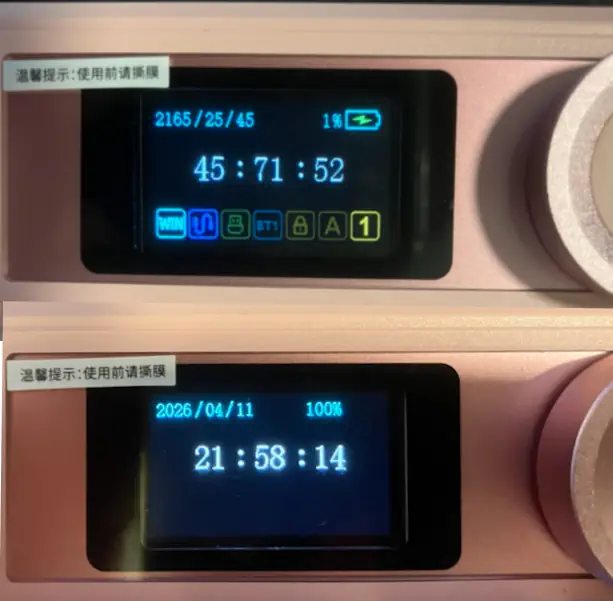 Clock screen before and after
The only reason I have a before picture of that screen is when I turned on the
keyboard for the first time it had that weird timestamp: welcome to
2165/25/45 45:71:52.
Side "Gas Lights" or How I was Gaslit by My Keyboard
Like my ND104, F108 Pro has three main light zones. Per-key programmable RGB,
the light bar above the arrow keys (see the comparison picture above), and LED
strips on either side. (A)I thought we could program all three. AI found
FUN_0044b800 in Ghidra and added it to the main index:
FUN_0044b800
Sidelight sender
Sends sidelight config. Commands: 04 18, 04 13, 00 80, 04 02, 04 F0
So the utility was based on this protocol. The keyboard returned a correct ACK
when we sent these commands to change the sidelight but nothing happened. It was
only after I yanked the LLM and looked around in the rest of the files that (A)I
discovered sidelight="0" in layouts/rgb-keyboard.xml. Looking at the other
keyboard software from Epomaker/Aula I realized this software is probably used
for many Aula/Epomaker keyboards and these are customizations for this keyboard.
In our defense:
- The Ghidra function exists.
- The keyboard returned ACK.
- While the keyboard manual mentions we can change the bar and side lights with keyboard shortcuts, it's also possible to change the programmable keys via software with keyboard shortcuts, so I thought we could do both for the other two light zones.
Both side strips and the light bar can only be programmed with the keyboard shortcut keys and not software.
- ai-docs/sidelight-investigation.md - AI summary of our discussion.
- ai-docs/hid-protocol.md - Sidelight protocol details (Sidelight and LED Layer sections)
- ai-docs/ghidra-functions.md -
FUN_0044b800andFUN_00433fd0.
Two Bytes Walk Into a Buffer in the Wrong Order
You can also remap keys. Similar to the above we would send commands and the keyboard returned ACKs but nothing changed. I thought we had gotten the key remap correctly. It was kind of straightforward. See the documented protocol at ai-docs/key-remap-protocol.md and the key map at ai-docs/key-map.md.
We need to build a 576-byte remap buffer and send it in 64-byte HID feature
reports. The report ended with a two-byte trailer that the Ghidra decompilation
showed as 0x55AA. Everything looked fine and the commands were very similar to
the other ones that were working. The keyboard replied with ACK but it was not
working.
Going around the internet I found a similar tool with a web UI for the Aula F108 Pro at https://github.com/Punkster81/AULA-F108-Driver. It doesn't have the remap or the LCD protocol but it's reverse engineered from captured traffic. Then I realized what my father always said:
Nothing beats examining the patient.
Microsoft? How is that going to help your med school application?
I went back to the burner desktop to examine the patient and captured the USB
traffic with Wireshark while I did the A > S remap. Then filtered the traffic
and gave the final pcapng to AI.
AI used Python to read the capture file. The remap slot data was identical: 02 00 16 00 at the A key's buffer offset (action 0x02 = key remap, HID code
0x16 = S). See the slot format and key map for details.
Everything but the trailer byte. We sent 55 AA, the capture had AA 55.
The Root Cause
The Ghidra decompilation showed: local_126 = 0x55aa;. We read this as "write
bytes 0x55 then 0xAA to the buffer" which is buf[574] = 0x55; buf[575] = 0xAA in Go.
Then I vaguely remembered the classic mistake: assuming byte order in memory matches what goes on the wire.
local_126 is a uint16 variable. The value 0x55AA stored as a 16-bit
integer on a little-endian x86 machine puts 0xAA at the lower address and
0x55 at the higher address.
To our credit, the keyboard returned the correct ACK and never rejected our payload. How can we figure out that something is wrong when the receiver accepts everything as correct but silently drops the bytes? This was a common thing with this keyboard. It kept gaslighting us, nodded, but rejected everything.
There were a few other issues, but mostly minor. I am happy the LLM allowed me to do this in a couple of days. An actual reverse engineer can probably do it much faster and without these issues.
Current models are very good at navigating binaries, at least small binaries like this, but while validation slows me down and I might get left behind, I need to double-check their work because "The Buck Stops Here." (A)I is responsible for what's done.
Lessons learned from the failures:
- The LCD borkening: Do not trust the files embedded in the software.
- The side and bar lights: Don't get gaslit by the keyboard.
- The two-byte order:
- AGI is here. LLMs are as stupid as humans when it comes to endianness.
- Capture the traffic like my good ole' days of being a cool game hacker.
That's all folks. If you have feedback or better yet, a solution like the F108 Pro screen firmware utility, please let me know. You know where to find me.
(A)I could argue we've 'hacked' the F108 Pro and now it can display a gif and multiple still images instead of none. My $200 ND104 has one gif and one still image.
Serious talk, does this mean the keyboard is unusable? Not really.
I mean ultimately I could return it to Amazon and be done. But I like the keyboard and the price. I could also buy a new one and swap and return, but I am not going to commit fraud over $40. During the time the LCD was working, I didn't use it to configure the screen because of the over-sensitive knob.
I can use the software to configure most of the keyboard. I can upload and view
GIFs. The clock and battery percentage is visible. The only problem is I can
accidentally go into a menu (happens a lot with the sensitive knob) and change
something and get stuck there. Holding fn+esc to reset to factory settings
usually gets me out of this, but means I have to rerun commands to set the color
and mapping back.
There are some things that can only be done with the screen but not the software. They have keyboard shortcut keys. Interestingly, I did not find these in the manual on the Aula website, but in the Epomaker version of the manual and also on Reddit.
For connections, hold to start pairing, tap to connect. E.g., hold fn+1 to
start pairing for the first Bluetooth slot and later just press fn+1 to
connect to the paired device. The screen still shows the pairing and failed
messages.
| FN Combo | Action      |
| -------- | ----------- |
| FN + ~   | USB 2.4G    |
| FN + 1   | Bluetooth 1 |
| FN + 2   | Bluetooth 2 |
| FN + 3   | Bluetooth 3 |
| FN + 4   | USB-C       |
The keyboard doesn't always use USB-C when I connect the cable so I have to use
fn+4.
Change the layouts with:
| FN Combo | Action  |
| -------- | ------- |
| FN + Q   | Android |
| FN + W   | Windows |
| FN + E   | Mac     |
| FN + R   | iOS     |
When I hold fn I can see the current connection and layout so in this case w
lights up for the Windows layout and 4 because it's connected with USB-C.
To avoid getting stuck in the menus, I switch to the gif or the clock screen and
then make sure I do not rotate the sensitive knob when I press fn+knob. This
will lock the screen and set the knob in multimedia mode. Turning the knob does
volume up/down and press is mute/unmute. These settings are hardcoded and
the knob cannot be remapped.
 Did you break your keyboard, too?
如有侵权请联系:admin#unsafe.sh